Dramatically speed up any Broadband connection and get the best possible performance from it.Full Speed will increase your online speed with everything you do, even up to 500% faster Web browsing if using Internet Explorer.Boost and optimize Windows to give you faster and smoother downloading, Web browsing, data streaming, e-mail, P2P, gaming. "Before and After" tests will instantly show you the gains you have achieved.Extremely simple to use. Click one button and everything is automatically done. No questions or any knowledge is needed. See the improvements immediately. Full Speed also improves the Internet performance for businesss which use Intranets or utilise Broadband technologies for Remote Desktop sessions and VPN's. Comes with comprehensive Web browsing speed and data download performance tests.
Microangelo 6.10.0005 is a software for creating and editing cursor and icon for all windows platform.Module On Display makes it possible to dispose the parameters of icon mapping.
LanHelper - this is program for work in the local network and control of it. With this software it is possible to produce scanning hard disks on the remote computers, to assign separate folders attributes "only for reading". Using LanHelper, it is possible to such perform simple operations on the computers in your network - to turn off them, - to start on their applications, to shut them access. Program also makes possible to communicate with the user on your network. program work preserves in XML file, which can be run in the browser or other application.
SmartWhois 4.2 - this software obtaining entire accessible information about any IP address, name of computer either domain, including the country, state or province, city, the name of company- provider, the name of administrator and the contact information service of technical support. Program will help to find answers to some most important questions: - who is the owner of domain? - when was this domain registered? - which the contact information of domain owner? - who is the owner of this block IP addresses? Interface: Russian, English
Intel® Pentium® 4 (equivalent) or higher recommended
Microsoft® Windows® XP SP2 Home Edition/Professional, Windows® XP Media Center Edition, Windows® XP Professional x64 Edition, Windows Vista™
512 MB (1GB RAM or above recommended)
1 GB of available hard disk space for program installation
Windows-compatible sound card (multi-channel sound card for surround sound support recommended)
CD-ROM for installation
This new version software from Ulead has new features added that has not available from previous version: Large number of presettings, many templates and effects, direct copying by video from camera to DVD, supported the conversion of video into the different file type,also can be loaded to the mobile devices - Apple iPod, Sony PSP, and mobile phones.
Driver Genius Professional is a professional driver management tool features both driver management and hardware diagnostics. Driver Genius provides such practical functions as driver backup, restoration, update and removal for computer users. If you often reinstall your operating system, you may not forget such painful experiences of searching all around for all kinds of drivers for your hardware. If you have lost your driver CD, the search will be more troublesome and consuming much time.Now with the driver backup function from Driver Genius, you can backup all drivers in your computer before reinstalling, and restore them with the driver restoration function after system reinstallation has been completed. This will dramatically save your time for driver installation during the system installation procedure, and you will no longer worry about where to find a driver. Besides, you can create an automatic installation package for all drivers in your system by Driver Genius. After you have reinstalled your operating system, you can restore all your drivers in just a click by this automatic restoration program. It's really convenient. Driver Genius can automatically find driver for a device that the system can't find a driver for it. It can recognize the name and vendor's information of the device, and directly provide download URL for the required driver. Driver Genius also supports online updates (by LiveUpdate) for drivers of existing hardware devices. There are more than 30,000 most recent drivers for such hardware devices as motherboards, video cards, sound cards, network cards, modems, monitors, mice, keyboards, digital cameras, video capture cards, etc. on Driver Genius web site. Besides, there are daily updates for many drivers on their site.
download Driver Genius professional here or mirror
Dee Mon Video Enhancer can convert your video to any resolution with superb quality. Super Resolution is a technique of increasing images or video resolution. For each processed frame, it uses information not only from this frame but also from other frames. If picture in your video doesn't change too fast, then information from several frames can be added to create a picture of a bigger size. No algorithms of ordinary image resize/re sample can provide this quality just because there's not enough information in one frame.
Delphi tutorial for beginner - writing more meaningfull program
Writing a more meaningful program
A simple spelling corrector
In this tutorial, we will build a more extensive program that performs very very simple spelling correction on a text file. It illustrates a number of important features of Delphi, and some of the power of the Delphi Run Time Library.
Our program asks the user to load a text file by pressing a 'Load file' button on the main program form. When the user has selected a file from the file selection dialog that appears, the contents are displayed in a TMemo box on the form, and a ghosted button - 'Correct' - is then enabled. The file line count is shown.
Pressing 'Correct' will correct mis-spellings of the word 'the' (something the author is often guilty of). Stats about the changes will be shown. When done, the 'Save file' button is enabled, allowing the file to be saved.
More than one file can be loaded in a session, and none have to be saved (no warnings are given when saving or when failing to save).
Designing the form
It is important when writing programs (applications) to design for ease of use by the user, and not ease of use for you, the coder. This is actually a very difficult thing to do, but it will vastly improve the acceptance of your program. The traditional, and still sensible approach is to design the external appearance and actions of your program, and then work down to code from there. Fortunately, Delphi, like other object oriented programs makes the transition easy.
In the screen shot above, our form is shown built with 1 Memo box (TMemo), 4 labels (TLabel), and 3 buttons (TButton). The Memo box will be used to show the file text. The red arrows show where under the Standard graphical item tab to select these 'widgets' (a term used to describe a graphical control item). You click on the widget you want, and then drag its size on the form. The final label is shown with the drag corners. Notice that each widget has a name shown on it. For the Memo box, this is the initial contents that will be shown (our code will reset this to blank). For the labels and buttons, these are called the 'captions'. The first thing we will do is to change the button captions. Click on Button1, and you will see its attributes in the Object Inspector window. Change the caption from 'Button1' to 'Load file'. Likewise change the Button2 caption to 'Save file' and Button3 to 'Correct'. As well as changing captions, we will change the names from the default values Delphi used to something more useful. Memo1 becomes MemoBox. And the buttons are now named LoadButton, SaveButton and CorrectButton. The labels can stay as they are. Our form is now designed!
Linking code to the form Object oriented programming revolves around objects and how they interact together. We have form, memo box, label and button objects. If we double click on any of them, Delphi will create code for the clicked widget. When you run the program, clicking the widget will run the code. As simple as that (except that you can do a whole lot more - see the Events tab of the Object Inspector. When you have added an action, a link to your code will appear there. Acting upon form creation So we will first double click on an empty part of the form. This will create the following code in your program unit, and position your cursor within it: procedure TForm1.FormCreate(Sender: TObject); begin
end;
This code, as its name implies, will be executed when your form is created (do not worry in this tutorial about the Sender parameter). This is very useful. It is effectively the start of your application. More importantly, it is the earliest part of your application when you can access the widgets on the form. We need this access because we will be working with them - initialising them, as in the code here:
 procedure TForm1.FormCreate(Sender: TObject);
begin
// Set the title of the form - our application title
Form1.Caption := 'Very simple spell corrector';

// Disable all except the load file button
SaveButton.Enabled    := false;
CorrectButton.Enabled := false;

// Clear the file display box
MemoBox.Clear;

// Enable scroll bars for this memo box - this allows us to scroll up
// and down and left and right to see all the text
MemoBox.ScrollBars := ssBoth;

// Do not allow the user to directly type into the displayed file text
MemoBox.ReadOnly := true;

// Set the font of the memo box to a mono-spaced one to ease reading
MemoBox.Font.Name := 'Courier New';

// Set all of the labels to blank
Label1.Caption := '';
Label2.Caption := '';
Label3.Caption := '';
Label4.Caption := '';

// Create the open dialog object - used by the GetTextFile routine
openDialog := TOpenDialog.Create(self);

// Ask for only files that exist
openDialog.Options := [ofFileMustExist];

// Ask only for text files
openDialog.Filter := 'Text files|*.txt';

// Create the string list object that holds the file contents
fileData := TStringList.Create;
end;
For now, do not worry about the openDialog statements. They'll be covered below. The last thing we have done is to create a string list (click on it in the code above to learn more). fileData refers to a TStringList variable we have defined earlier (before the implementation section of the unit): var // Global definitions in our unit Form1: TForm1; fileName : String; fileData : TStringList; openDialog : TOpenDialog;
A string list is literally that - an object variable that can hold a variable number of strings. We will be using this to hold the contents of our text file. Before we can do that, we must create (instantiate) a TStringList object. This creation process allocates storage for the object and initialises it internally. It is defined as global so that all of the widget action code can work with it. Be careful with global data - you should keep it to a minimum. So when our program now starts, the form is cleared of extraneous labelling, and other bits and pieces are set in place, such as scroll bars for the memo box (note that you can do this at the form design stage - take a look at the properties for the memo box).
Acting upon 'Load file' button clicking
Double click the 'Load file' button and more code will be inserted into your unit: procedure TForm1.LoadButtonClick(Sender: TObject); begin
end;
We want to load up a user selected file. So we need to let the user select using a file selection dialog: procedure TForm1.LoadButtonClick(Sender: TObject); begin // Display the file selection dialog if openDialog.Execute then// Did the user select a file? begin ...
Now we can see that we have used the openDialog defined in the global variable section, and as initialised in the form creation routine. Let's look again at that initialisation: // Create the open dialog object - used by the GetTextFile routine openDialog := TOpenDialog.Create(self);
// Ask for only files that exist openDialog.Options := [ofFileMustExist];
// Ask only for text files openDialog.Filter := 'Text files|*.txt';
The file selection (open) dialog object must first be created. It can then be used as many times as we wish. We then configure the dialog to display only existing text files. Click on the TOpenDialog keyword above to learn more.
Returning to the LoadButton code, we now load the file specified by the user: if openDialog.Execute then// Did the user select a file? begin // Save the file name fileName := openDialog.FileName;
// Now that we have a file loaded, enable the text correction button CorrectButton.Enabled := true;
// Load the file into our string list fileData.LoadFromFile(fileName); end;
We save the name of the file (which includes its full path) so that we can save to it later. We enable the correct text button, and then do the elegant bit - load the file into a string list (the one we defined earlier) using just one statement! We can now access any line of the file by index number! Finally we do the following: // Display the file in the file display box MemoBox.Text := fileData.Text;
// Clear the changed lines information Label1.Caption := ''; Label2.Caption := ''; Label3.Caption := '';
// Display the number of lines in the file Label4.Caption := fileName+' has '+IntToStr(fileData.Count)+ ' lines of text';
we display this complete file in another very elegant statement - fileData.Text converts the string list into one big string which is then written to the memo box for display. We clear the labels except the fourth. Here we use another feature of the TStringList class - the Count property. It gives the count of lines in the loaded file. Acting upon the 'Correct' button clicking Before we look at the Correct Button code, let us look at a new data type, an enumerated type, introduced in this unit:
type TheMisSpelled = (TEH, ETH, EHT); // Enumeration of 'the' miss-spellings
This defines the 3 mis-spellings of the word 'the' that our code will correct in loaded files. Here we limit our spell corrector to a tiny range of correction values, as enumerated here. These values, TEH, ETH and EHT are simply placeholders. We use strings to do the checking and corrections. Double click on the 'Correct' button, and enter the following code: procedure TForm1.CorrectButtonClick(Sender: TObject); var text : String; line : Integer; changeCounts : array[TEH..EHT] of Integer;
begin // Set the changed line counts changeCounts[TEH] := 0; changeCounts[ETH] := 0; changeCounts[EHT] := 0;
// Process each line of the file one at a time for line := 0 to fileData.Count-1 do begin // Store the current line in a single variable text := fileData[line];
// Change the 3 chosen basic ways of mis-spelling 'the' if ChangeText(text, TEH) thenInc(changeCounts[TEH]); if ChangeText(text, ETH) thenInc(changeCounts[ETH]); if ChangeText(text, EHT) thenInc(changeCounts[EHT]);
// And store this padded string back into the string list fileData[line] := text; end;
// And redisplay the file MemoBox.Text := fileData.Text;
// Display the changed line totals if changeCounts[TEH] = 1 then Label1.Caption := 'Teh/teh changed on 1 line' else Label1.Caption := 'Teh/teh changed on '+ IntToStr(changeCounts[TEH])+' lines';
if changeCounts[ETH] = 1 then Label2.Caption := 'eth changed on 1 line' else Label2.Caption := 'eth changed on '+ IntToStr(changeCounts[ETH])+' lines';
if changeCounts[EHT] = 1 then Label3.Caption := 'eht changed on 1 line' else Label3.Caption := 'eht changed on '+ IntToStr(changeCounts[EHT])+' lines';
// Finally, indicate that the file is now eligible for saving SaveButton.Enabled := true;
// And that no more corrections are necessary CorrectButton.Enabled := false; end;
As we make changes, we keep count of the changed lines in the changeCounts array. Notice that it has bounds defined by the enumeration type we defined. We call a new routine ChangeText to do the changes on every string in the string list (the for loop indexes the string list from the first string (index 0) to the last (one less than the number of strings)). We increment counts if the called routine says that it made changes (it returns a Boolean value). Here is that routine: function TForm1.ChangeText(var Text: String; theType: TheMisSpelled): Boolean; var changed : Boolean; begin // Indicate no changes yet changed := false;
// First see if the string contains the desired string case theType of TEH : if AnsiContainsStr(Text, 'teh') or AnsiContainsStr(Text, 'Teh') then begin Text := AnsiReplaceStr(Text, 'teh', 'the'); // Starts lower case Text := AnsiReplaceStr(Text, 'Teh', 'The'); // Starts upper case changed := true; end; ETH : if AnsiContainsStr(Text, 'eth') then begin Text := AnsiReplaceStr(Text, 'eth', 'the'); // Lower case only changed := true; end; EHT : if AnsiContainsStr(Text, 'eht') then begin Text := AnsiReplaceStr(Text, 'eht', 'the'); // Lower case only changed := true; end; end;
// Return the changed status Result := changed; end;
Click on any blue keywords to learn more. The routine is called 3 times per line - each time it is passed one of the mis-spelling enumeration types. The Case statement routes to the right code to perform according to the type. We set the returned value - Result - to true if we have changed the line. Notice that the Ansi commands are case sensitive. Returning to the LoadButton code above, the last things we do are to redisplay the changed string list in the memo box and display changed line stats. We also disable the CorrectButton and enable the SaveButton. Acting on the 'Save file' button clicking Finally, double clicking the save button allows us to write code to save the now changed file:
procedure TForm1.SaveButtonClick(Sender: TObject); begin // Simply save the contents of the file string list if fileName <> '' then fileData.SaveToFile(fileName);
// And disable the file save button SaveButton.Enabled := false; end;
This is a lot simpler - if we have a valid file name (this is a double check that we have something to save), then we use the string list SaveToFile method. Easy! Then we disable the save button. Putting it all together Below is the full code, along with a sample before and after text file contents : // Full Unit code. // -----------------------------------------------------------
private // Method added by the author function ChangeText(var Text : String; theType : TheMisSpelled) : Boolean;
published // Constructor added by Delphi procedure FormCreate(Sender: TObject); end;
var
// Global definitions in our unit
Form1: TForm1;
fileName : String;
fileData : TStringList;
openDialog : TOpenDialog;
implementation {$R *.dfm} // Include form definitions
// Procedure called when the main program Form is created procedure TForm1.FormCreate(Sender: TObject); begin // Set the title of the form - our application title Form1.Caption := 'Very simple spell corrector';
// Disable all except the load file button SaveButton.Enabled := false; CorrectButton.Enabled := false;
// Clear the file display box MemoBox.Clear;
// Enable scroll bars for this memo box MemoBox.ScrollBars := ssBoth;
// Do not allow the user to directly type into the displayed file text MemoBox.ReadOnly := true;
// Set the font of the memo box to a mono-spaced one to ease reading MemoBox.Font.Name := 'Courier New';
// Set all of the labels to blank Label1.Caption := ''; Label2.Caption := ''; Label3.Caption := ''; Label4.Caption := '';
   // Create the open dialog object - used by the GetTextFile routine
openDialog := TOpenDialog.Create(self);

// Ask for only files that exist
openDialog.Options := [ofFileMustExist];

// Ask only for text files
openDialog.Filter := 'Text files|*.txt';
// Create the string list object that holds the file contents fileData := TStringList.Create; end;
// Procedure called when the file load button is pressed procedure TForm1.LoadButtonClick(Sender: TObject); begin // Display the file selection dialog if openDialog.Execute then// Did the user select a file? begin // Save the file name fileName := openDialog.FileName;
// Now that we have a file loaded, enable the text correction button CorrectButton.Enabled := true;
// Load the file into our string list fileData.LoadFromFile(fileName); end;
// And display the file in the file display box MemoBox.Text := fileData.Text;
// Clear the changed lines information Label1.Caption := ''; Label2.Caption := ''; Label3.Caption := '';
// Display the number of lines in the file Label4.Caption := fileName+' has '+IntToStr(fileData.Count)+' lines of text'; end;
// Procedure called when the file save button is pressed procedure TForm1.SaveButtonClick(Sender: TObject); begin // Simply save the contents of the file string list if fileName <> '' then fileData.SaveToFile(fileName);
// And disable the file save button SaveButton.Enabled := false; end;
// Procedure called when the correct text button is pressed procedure TForm1.CorrectButtonClick(Sender: TObject); var text : String; line : Integer; changeCounts : array[TEH..EHT] of Integer; begin // Set the changed line counts changeCounts[TEH] := 0; changeCounts[ETH] := 0; changeCounts[EHT] := 0;
// Process each line of the file one at a time for line := 0 to fileData.Count-1 do begin // Store the current line in a single variable text := fileData[line];
// Change the 3 chosen basic ways of mis-spelling 'the' if ChangeText(text, TEH) then Inc(changeCounts[TEH]); if ChangeText(text, ETH) then Inc(changeCounts[ETH]); if ChangeText(text, EHT) then Inc(changeCounts[EHT]);
// And store this padded string back into the string list fileData[line] := text; end;
// And redisplay the file MemoBox.Text := fileData.Text;
// Display the changed line totals if changeCounts[TEH] = 1 then Label1.Caption := 'Teh/teh changed on 1 line' else Label1.Caption := 'Teh/teh changed on '+ IntToStr(changeCounts[TEH])+' lines';
if changeCounts[ETH] = 1 then Label2.Caption := 'eth changed on 1 line' else Label2.Caption := 'eth changed on '+ IntToStr(changeCounts[ETH])+' lines';
if changeCounts[EHT] = 1 then Label3.Caption := 'eht changed on 1 line' else Label3.Caption := 'eht changed on '+ IntToStr(changeCounts[EHT])+' lines';
// Finally, indicate that the file is now eligible for saving SaveButton.Enabled := true;
// And that no more corrections are necessary CorrectButton.Enabled := false; end;
// Function to change a type of 'the' mis-spelling in a string // Returns true if the string was changed function TForm1.ChangeText(var Text: String; theType: TheMisSpelled): Boolean; var changed : Boolean; begin // Indicate no changes yet changed := false;
// First see if the string contains the desired string case theType of TEH : if AnsiContainsStr(Text, 'teh') or AnsiContainsStr(Text, 'Teh') then begin Text := AnsiReplaceStr(Text, 'teh', 'the'); // Starts lower case Text := AnsiReplaceStr(Text, 'Teh', 'The'); // Starts upper case changed := true; end; ETH : if AnsiContainsStr(Text, 'eth') then begin Text := AnsiReplaceStr(Text, 'eth', 'the'); // Lower case only changed := true; end; EHT : if AnsiContainsStr(Text, 'eht') then begin Text := AnsiReplaceStr(Text, 'eht', 'the'); // Lower case only changed := true; end; end;
// Return the changed status Result := changed; end;
end.
The displayed file before correction
 Teh cat sat on eth mat
The cat did not sit on eth mat or teh floor

Teh teh teh eth eth eht eht
Final line of 5.
The displayed file after correction
 The cat sat on the mat
The cat did not sit on the mat or the floor

The the the the the the the
Final line of 5.
The displayed statistics
 Teh/teh changed on 5 lines
eth changed on 4 lines
eht changed on 2 lines
The file has 5 lines
Delphi allows you to create GUI (Graphical User Interface) or Console (text-only) applications (programs) along with many other types. We will concern ourselves here with the common, modern, GUI application.
Delphi does a lot of work for us - the programmer simply uses the mouse to click, drag, size and position graphical parts to build each screen of the application.
Each part (or element) can be passive (displaying text or graphics), or active (responding to a user mouse or keyboard action).
This is best illustrated with a very simple program.
Creating a simple 'Hello World' program
When you first run Delphi, it will prepare on screen a new graphical application. This comprises a number of windows, including the menu bar, a code editor, and the first screen (form) of our program. Do not worry about the editor window at the moment.
The form should look something like this :
We have shown the form reduced in size for convenience here, but you will find it larger on your computer. It is a blank form, onto which we can add various controls and information. The menu window has a row of graphical items that you can add to the form. They are in tabbed groups : Standard, Additional, Win32 and so on.
We will select the simplest from the Standard collection. Click on the A image to select a Label. This A will then show as selected:
Having selected a graphical element, we then mark out on the form where we want to place the element. This is done by clicking and dragging. This gives us our first form element:
Changing graphical element properties
Notice that the graphical element contains the text Label1 as well as resize corners. The text is called the Caption, and will appear when we run the application. This Caption is called a Property of the button. The label has many other properties such as height and width, but for now, we are only concerned with the caption.
Let us blank out the caption. We do this in the window called the Object Inspector (available under the View menu item if not already present):
Adding an active screen element
If we now return to the Standard graphical element collection, and select a button, shown as a very small button with OK on it, we can add this to the form as well:
We now have a label and a button on the form. But the button will do nothing when pressed until we tell Delphi what we want it to do. So we must set an action, called an Event, for the button. The main event for a button is a Click. This can be activated simply by double clicking the button on the form. This will automatically add an event called OnClick for the button, and add a related event handler in the program code:
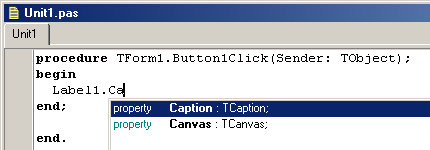
This 'skeleton' code will not do anything as it stands. We must add some code. Code that we add will run when the button is clicked. So let us change the label caption when the button is pressed. As we type, Delphi helps us with a list of possible options for the item we are working on. In our instance, we are setting a Label caption:
Here you see that Delphi has listed all appropriate actions that start with ca. If we press Enter, Delphi will complete the currently selected item in the list. We assign a text value 'Hello World' to the caption property. Note that we terminate this line of code with a ; - all Delphi code statements end with this indicator. It allows us to write a command spread across multiple lines - telling Delphi when we have finished the command.
And we have now finished our very simple action - we will set the label to 'Hello World' when the button is pressed.
Running our first program To run the program, we can click on the Green triangle (like a Video play button), or press F9. When the program runs it looks like this:
When we click on the button, we get:
and our program has set the Label text as we requested. Note that the program is still running. We can click as many times as we like with the same outcome. Only when we close the program by clicking on the top right X will it terminate. Looking at the code that Delphi generated Whilst we have only typed one line of code, Delphi has typed many for us. Let us first look at the main program code. Notice that we have added comments (in green, starting with the // comment identifier). These are ignored by the Delphi compiler, but help the coder understand the code. You can click on any word marked in white to see reference information for that word:
type TForm1 = class(TForm) Label1: TLabel; // The label we have added Button1: TButton; // The button we have added procedure Button1Click(Sender: TObject); private { Private declarations } public { Public declarations } end;
// The button action we have added procedureTForm1.Button1Click(Sender: TObject); begin Label1.Caption := 'Hello World'; // Label changed when button pressed end;
This code is called a Unit and is a Delphi module - one chunk of code. If you save this code, it will save in a file called Unit1.pas - a Pascal file. The unit comprises two main parts - the interface section, which tells what the unit does. And an implementation section that holds the code that implements the interface. Click on the unit keyword in the code to learn more.
Learning more ... If you want to learn more, then try the following:
Right click on the form, and select the View as text item from the drop down list. This will show the form, label and button properties.
View the main program file by selecting menu item Project/View source. This will show the code that Delphi generated to kick start your program. It includes a reference to Unit1.pas and your form, and starts your program running.
Color7 Video Studio v8.0.3.18 Special features: support AVI, DVD, VCD, SVCD, MPEG, MPEG 1, MPEG 2, MPEG 4, RM, RMVB, WMV and other video of sizes, extraction to video from DV, WEB Camera, VCR, TV Tuner, Analog Camera devices, thread and the connection of video fragment, batch mode conversion, preliminary result survey, support PAL and NTSC systems, tuning the parameters of conversion and quality, creation and burn-through DVD, VCD, SVCD.
CuteFTP 8.0.7 Professional Edition Build 06.05.2007.1
CuteFTP 8.0.7 Professional Edition Build 06.05.2007.1 utility to upload your files to your internet resources. supported protocols FTPS (File Transfer Protocol using SSL), SFTP (Secure File Transfer Protocol) and HTTPS (Hyper Text Transfer Protocol Secure).
Fresh Download is an easy to use and very fast download manager that turbo charges downloading files from the Internet, such as your favorite mp3 files, software, picture collections, video, etc. Unlike other similar utilities, this software is 100% free, no banners, no spyware.
Presentation to Video Converter it makes possible for you to convert PowerPoint® presentation (PPT and PPS) into any video files that supports your system, (for example AVI, ASF, WMV, MPEG, VOB, MP4), Flash files (SWF, FLV), GIF Animation or to write down presentation on DVD disk.
VundoFix - this is the small free software utility, will moves away from the computer all possible variations in Vundo Virus. Has very simple interface and does not require installation.
Ad-aware 2007 7.0.1.3 program for the detection and removal spyware from your computer operating system . In addition to this, program Ad-aware 2007 ensures reliable protection from identity theft, dial programs, harmful programs (Malware), interceptors(Browser hijackers) and other spy programs.
Autodesk Maya Unlimited 8.0 - New Links for All Operating Systems
Autodesk Maya Unlimited 8.0 - New Links for All Operating Systems Academy Award®-winning Autodesk® Maya® software is a powerfully integrated 3D modeling, animation, effects, and rendering solution. Based on an open architecture, all your work can be scripted or programmed using an embedded scripting language and a well-documented and comprehensive Application Program Interface (API) enabling you to realize your creative vision. Autodesk Maya is used by film and video artists, game developers, design visualization professionals, and students to create engaging, lifelike digital images, realistic animation, and extraordinary visual effects.
SolidWorks Corporation unveiled SolidWorks 2007, the newest and most powerful version of the #1 3D mechanical design software it has been shipping to the mainstream market for nearly a decade. SolidWorks 2007 features a host of new and unique capabilities to help designers and engineers bring better products more quickly to market, and to more easily transition from 2D to 3D design. Included in SolidWorks 2007 are a multitude of improvements that simplify, accelerate, and integrate design engineering work, including: * an exponential increase in performance; * new user productivity tools such as Smart Components; * new features for consumer product, sheet metal, and machine designers, such as Mounting Bosses, Snap Hooks, and Vents; * new mainstream design validation capabilities that put sophisticated analysis in the hands of designers; * innovations that significantly ease the migration from 2D to 3D design, such as 3D Drawing View and Design Checker, as well as enhancements to the DWG Series (Editor, Gateway, Viewer); and * enhancements in SolidWorks Office Premium that empower design engineers across the entire spectrum of their activities. In fact, all of these improvements are present in SolidWorks Office Premium, the company’s complete 3D product design solution, and they confirm SolidWorks as the #1 3D mechanical design software for the mainstream market.
“SolidWorks 2007 is a significant leap,” said Kevin Batty, drawing office manager of Kirk Ella Tool Design in the UK. “Not only does it include enhancements I’ve suggested to SolidWorks, but it includes many more useful new capabilities I never imagined. SolidWorks has again improved its intuitive user interface, making it simple to learn the new functions that are offered. Everyone can be a power user on some level.” Performance Users are continuously demanding more from their mechanical design software, and SolidWorks has again answered the call in SolidWorks 2007 with the most significant release ever in terms of performance. Based on an analysis of actual customer usage patterns, the company focused performance enhancements in two areas – overall system architecture and common operations – with particularly dramatic gains in large assembly and drawing processing. download here:
Xingtone Ringtone Maker - is program for the record, the extraction by audio from video, the editing and the conversion of audio in the melody for the cell phones with the subsequent transfer to the telephone. Special features: supporting transfer of melodies to different of cell phones brand: Audiovox, Hitachi, LG, Motorola, Nokia, Samsung, Sanyo, Sharp, Siemens, Sony Ericsson, Toshiba, support PalmOne. simplicity of work, high quality, simple and convenient interface. Also this program will help to optimize your pictures, for the subsequent qualitative mapping in the cell phone. download for xingtone ringtone maker here 18.4mb
Background Remover is a Photoshop-compatible plug-in for Windows designed by ImageSkill Software that can work with Adobe Photoshop, Adobe Photoshop Elements, Corel Paint Shop Pro, Macromedia Fireworks etc. The main purpose of the Background Remover is to extract some part of an image i.e. “the object” and remove part that which is unwanted, i.e. “the background”.
Program for administrators and the simple users on Microsoft Windows networks. It makes possible to reflect the current state of network in the form of graphic map, accomplishes monitoring with the aid of the periodic interrogation of computers. LANState Pro Contains the built-in Web server for mapping the map of network to the remote clients. It is possible to establish program to only one computer, to dispose it, and all administrators and users of network can see the map of network in their browsers. It is already registered. Functions: - monitoring network and the visual survey of the state the computers (it works, it does not work) - obtaining different information about the computers (IP address, the current user,belonging with the domain, established BY OS, current date/time, MAC address, net resources) - the simulation of network in the graphic form with the possibility of retaining of maps and their switching - the tracking of connections to the net resources with the use of a "black" list,prevent to enter a website or internet resource - the survey for load net map (traffic) - obtaining the name of computer with IP address - sending of usual and anonymous popup - communications to any or to several computers in his network - disconnection and reloading the remote computers (with the presence of the corresponding rights) - Ping of LAN - others...
download here for lan state 3.0 pro here or mirror
Mediapleyer with supporting playback for all popular video formats, including DVD, VCD, AVI, MKV, Ogg Theora, OGM, 3GP, Mpeg-1/2/4, WMV, RealMedia and QuickTime. There is a support for subtitles, zoom, scanning. It handles a wide range of subtitles and allows you to capture audio, video, and screenshots in many ways. The player provides both internal and external filters with a fully controlled environment in terms of connections to other splitters, decoders, audio/video transform filters and renderers without grappling with the DirectShow merit system. Internal filters are not registered to user's system to keep it from being messed up with system filters. The KMPlayer includes almost all the essential decoders required for media playback. Furthermore, to get beyond the limitation of internal decoders, the external ones such as commercial h.264 decoders or cyberlink/intervideo audio decoders can be specified, so that KMP works optimally by the users' own customization. Even though the KMP is based upon directshow structure, it supports Winamp, Realmedia and Quicktime by the internal logic. Thus, it is possible to specify where to try to connect firstly the media in preferences. In short, the player provides a strong hybrid structure efficient for interconnecting various directshow filters, winamp input&dsp plugin, and internal filters. The most outstanding feature is that the player has the full control of filter connections to prevent a media playback from being messed. player can set multifarious audio and video effects, slow down or increase playback speed with regular tone, select parts of a video as favorites, do an exceptionally powerful A-B repeat, remap the keys of remote interface for HTPC including overlay screen controls, change a skin dynamically depending on a media type playing, and many more. It is completely customizable thanks to a wide selection of skins and color schemes, and the configuration options are extremely extensive.
BSPlayer Pro 2.12.941: BSPlayer is a Windows player that plays back all kinds of media files ( avi / mpg / asf / wmv / wav / mp3...) and specialises in video and divx playback.
Main Features: - Support for all popular media formats - Support for new file formats such as Matroska and OGM with embedded chapters, subtitles and multiple audio streams - Pan-scan and custom pan-scan option - Support for multiple audio streams and switching between them - Support a lot of subtitles formats (MicroDVD, SubRip, Subviewer...), custom subtitles position, color, font, transparency... - Support switching between multiple (different language) subtitles - Fast forward and fast rewind option - Frame stepping - Frame capture - Bookmarks support - Chapters support - Equalizer - Multilingual - Fully skinnable - Custom aspect ratios - WinLIRC support - Almost every action can be assigned to user selected key (even two keys) and different keys can be assigned for full screen and windowed mode - Every action can also be assigned to WinLIRC button - Support Winamp DSP plugins - Multiple audio stream switching - Command line support - Playback of incomplete AVI files and locked files (files in use, files still downloading or recording) - BSI/INI files support and dynamic DirectShow filters loading (so everything can be burned on CD and played without installing anything) - Plugin support
Pro version has all the great functions of 1.4 plus new great features such as: - Customizable Equalizer - Support for Capture/Tuner devices - Capture Video to file - Integrated subtitle editor - Network file buffering - Improved subtitles - Improved VMR9 support - Technical email support
Universal HEX editor. As the editor of disks makes it possible to work and calculating hard disks, the diskettes, Cd rom, DVD, ZIP, Smart Media, Compact Flash memory cards and by other type, in this case is supported FAT12, FAT16, FAT32, NTFS, CDFS. in addition to this, WinHex ensures access to the virtual memory (such RAM- editor) and it makes it possible to produce many other operations,for example, the cloning of disks or the reliable removal of classified information - without the possibility of subsequent restoration.